Here's a hypothetical: a boat sells on Saturday. On Monday it's still advertised on two channels, one showing last month's price and another missing photos of the new electronics. A shopper calls about the sold boat, and the salesperson starts the conversation with an apology.
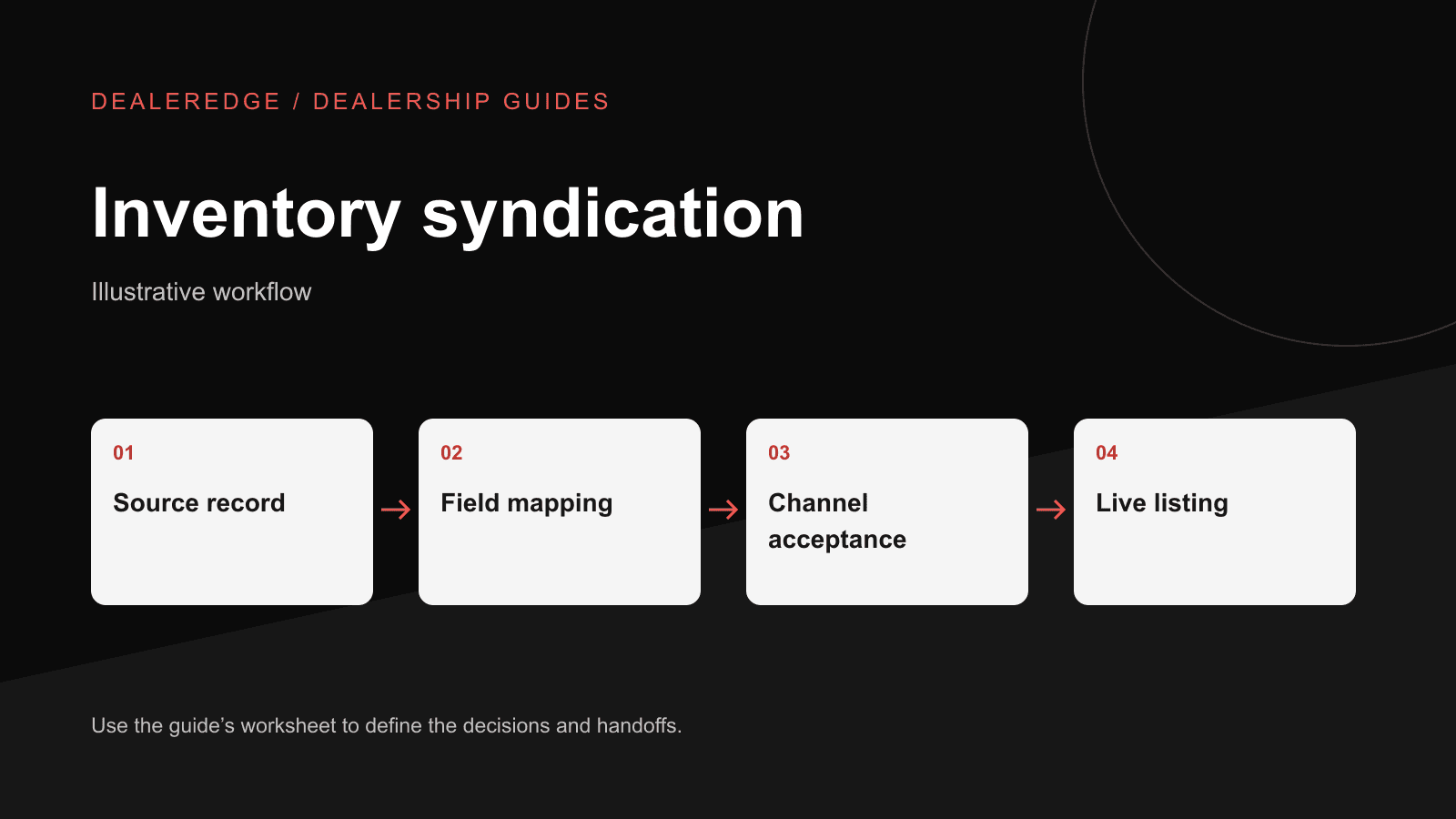
Syndication means sending listings from one source to your website and other channels. Gaps that can break it include a field that doesn't map, an error report nobody reads, or a status change that never leaves the building. Each destination sets its own terms, eligibility and field rules, and those can change. Use this framework against your own channels and their current documentation. No setup guarantees that a listing will appear on any particular channel.
One authoritative record
Each unit needs one place where its data is created and corrected, whether that's a DMS, an inventory system or a listing tool. The rule that matters: correct at the source, not at the destination. If someone edits a price directly on a marketplace, the next feed may overwrite the fix. Or it may not, and then two versions exist.
Settle three things: which system is the source, who may edit it, and whether any channel receives data from somewhere else.
Identifiers: public stock number and internal unit ID
Show shoppers your public stock number, such as U19-0412. Don't rely on it alone to match records, though. Stock numbers can be reused over time or duplicated across stores. Give each unit a stable internal unit ID that never changes and is never reused, or document a unique key such as location plus stock number plus received date. Use that ID to match source records, website pages and destination listings.
- Keep location in its own field. Don't encode it inside the internal unit ID. If you use a composite key such as location plus stock number plus received date, document it explicitly as the matching key and still store location as a separate field.
- Some destinations treat a changed identifier as a new listing and leave the old one orphaned. Check how yours behave before correcting an identifier.
Sent, accepted, visible, indexed
| Stage | Meaning | How to check | Typical failure |
|---|---|---|---|
| Sent | Your system or provider transmitted the data | Send log or feed file with timestamp | Unit filtered out; job didn't run |
| Accepted | The destination processed the record without rejecting it | Destination import or error report | Missing required field; rejected photo or price format |
| Visible | Shoppers can see the listing | Search the destination as a shopper would | In review, hidden by a rule, account issue |
| Indexed | A search engine has the page in its index (your own site pages) | Search Console page indexing | Blocked, too new, poorly linked |
When someone says listings "are syndicated," ask which stage they're confirming. A send log proves only the first.
Field mapping worksheet
Add one column for each destination you use.
| Source field | Website | Destination A | Rule | Required at destination? | Owner |
|---|---|---|---|---|---|
| Internal unit ID | Hidden key | Dealer reference, if supported | Never changes or gets reused | Inventory manager | |
| Stock number | Stock # | Dealer stock ID | No transform | Inventory manager | |
| Condition | Condition | Condition | Map to allowed values (e.g., "Pre-owned" → "Used") | Inventory manager | |
| Year / make / model | Same | Same | Match the destination's naming | Inventory manager | |
| Length | Length | Length | Units and format | Inventory manager | |
| Engine / power | Engine | Engine fields | Split combined text if required | Inventory manager | |
| Options | Features | Options | Character limits; put key options first | Sales manager | |
| Description | Description | Description | Length and content rules | Marketing | |
| Price | Price | Price | Apply your price policy | Sales manager | |
| Photos | Gallery | Images | Primary image, order, count, file size | Inventory / photographer | |
| Status | Availability | Status or removal | Pending and sold behavior | Inventory manager | |
| Location | Location | Location | Consistent names | Inventory manager | |
| Last changed | — | — | Keep for troubleshooting | System |
Fill in "Required at destination?" from each destination's current documentation or account representative, and recheck it periodically.
Condition, options and photos are where listings lose the details that sell the boat. Confirm that condition values are accepted, that your important options survive truncation, that the intended primary photo leads, and that updated photos replace old ones rather than piling up.
Price display needs a written policy before mapping: when you show a price and when you show "call for price," whether you show a sale price, MSRP or both, and how fees and options appear. Destinations may restrict price fields, so the goal is a consistent, accurate message across channels.
Timestamps and errors
For each unit and channel, keep three timestamps: last changed at the source, last sent, and last accepted (where the destination reports it). When a listing is wrong, compare them:
- Changed after the last send: the feed hasn't run, or it filtered the unit out.
- Sent but not accepted: read the destination's error report.
- Accepted but wrong or missing: check the mapping, review status or destination display rules.
Error reports are useful only if someone reads them. Assign each one to a named owner.
Sold units on your own website
When a unit sells, its status should reach each channel. On your website, either keep an accurately marked sold page with links to similar available boats for a defined period, or return a 404 or 410 once the page is removed. A custom not-found page can still offer browse links. Redirect only to a genuinely equivalent replacement. Don't redirect sold units to a broad category page.
Feed testing worksheet
Run these tests with a designated test record that is excluded from public channels in staging, or with a sandbox the destination provides. Don't mark real available inventory as sold to run a test. For production evidence, observe genuine, authorized changes as they happen. Save screenshots and logs with timestamps.
| Scenario | Action | Expected website result | Expected destination result | Evidence | Owner |
|---|---|---|---|---|---|
| New unit | Create test record with full fields and photos | Page appears with correct fields | Sent, then accepted; visible if the test channel allows | Send log, acceptance report, screenshots | Inventory manager |
| Price change | Change price at source | New price displays | Updated price accepted | Before/after timestamps | Sales manager |
| Photo change | Reorder and replace photos | New primary image, no duplicates | Images updated, not appended | Screenshots | Inventory / photographer |
| Options or description edit | Edit long options text | Full text displays | Truncation checked against rules | Side-by-side comparison | Marketing |
| Pending | Set test record to pending | Pending display per policy | Status or removal per destination | Timestamps | Inventory manager |
| Sold | Set test record to sold | Sold page or removal per policy | Listing removed or marked sold | Timestamps for send and acceptance | Inventory manager |
| Rejected record | Leave a required field empty on the test record | Shows per website rules | Error appears in report | Error report | Exception owner |
| Identifier collision | Two test records share a stock number at different locations | Each matches by internal unit ID | No overwritten listing | Match log | Inventory manager |
Recommended audit sample
Outside of testing, check a sample on a schedule you set, for example weekly. Include recently changed units, recently sold units and a few at random. Compare the source, the website and each destination field by field, and log each mismatch with its stage. This is an internal control, not an industry benchmark. Adjust the sample size to your inventory and how many channels you use.
| Stock # | Unit ID | Field | Source | Website | Destination A | Stage failed | Owner | Fixed (date) |
|---|---|---|---|---|---|---|---|---|
Name the exception owner
Assign one person, often the inventory manager, to own feed exceptions. Their job is to read error reports, route each problem to its field owner, set a recommended fix target (for example, by the next business day for sold or price errors), and escalate to the provider when a fault sits outside the dealership. Name a backup for that person's days off.
Review your feed workflow with DealerEdge
Run the feed testing worksheet on your current setup first. The results show which stage fails, for which fields, and who owns each fix, whatever tools you use.
- 1. feed testing worksheet
- 2. inventory-focused walkthrough
Request a private inventory-focused walkthrough and bring your field mapping worksheet, test results and a recent error report. Review DealerEdge inventory and integrations beforehand.
Not ready for a one-to-one conversation? Email me about the next demo to be emailed about the next session.